
Add Customer Testimonials
Learn how to add customer testimonials in QuoteScope.
Adding Testimonials
Add client testimonials to your QuoteScope account so they automatically appear on your published quotes, building trust and credibility with potential clients.
Before You Start: Make sure you have the client's permission to use their testimonial and have their name, position, company, and feedback ready. Learn more about how testimonials work in QuoteScope.
1. Prepare Your Testimonial Information
Gather the testimonial details: client name, position/title, company name, and testimonial text (keep it under 500 characters).
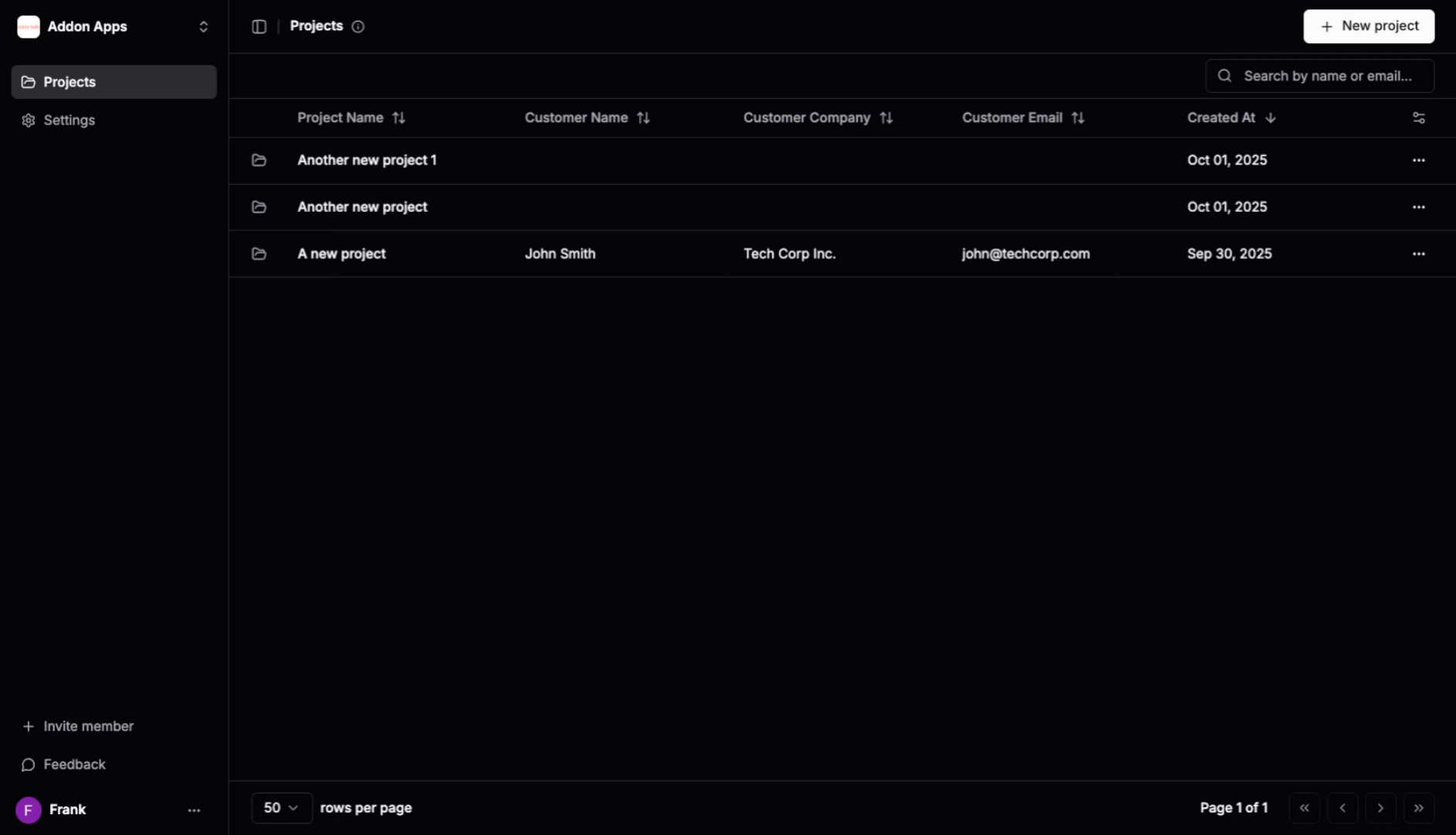
2. Access Settings
Click "Settings" in your dashboard to access your account configuration options.
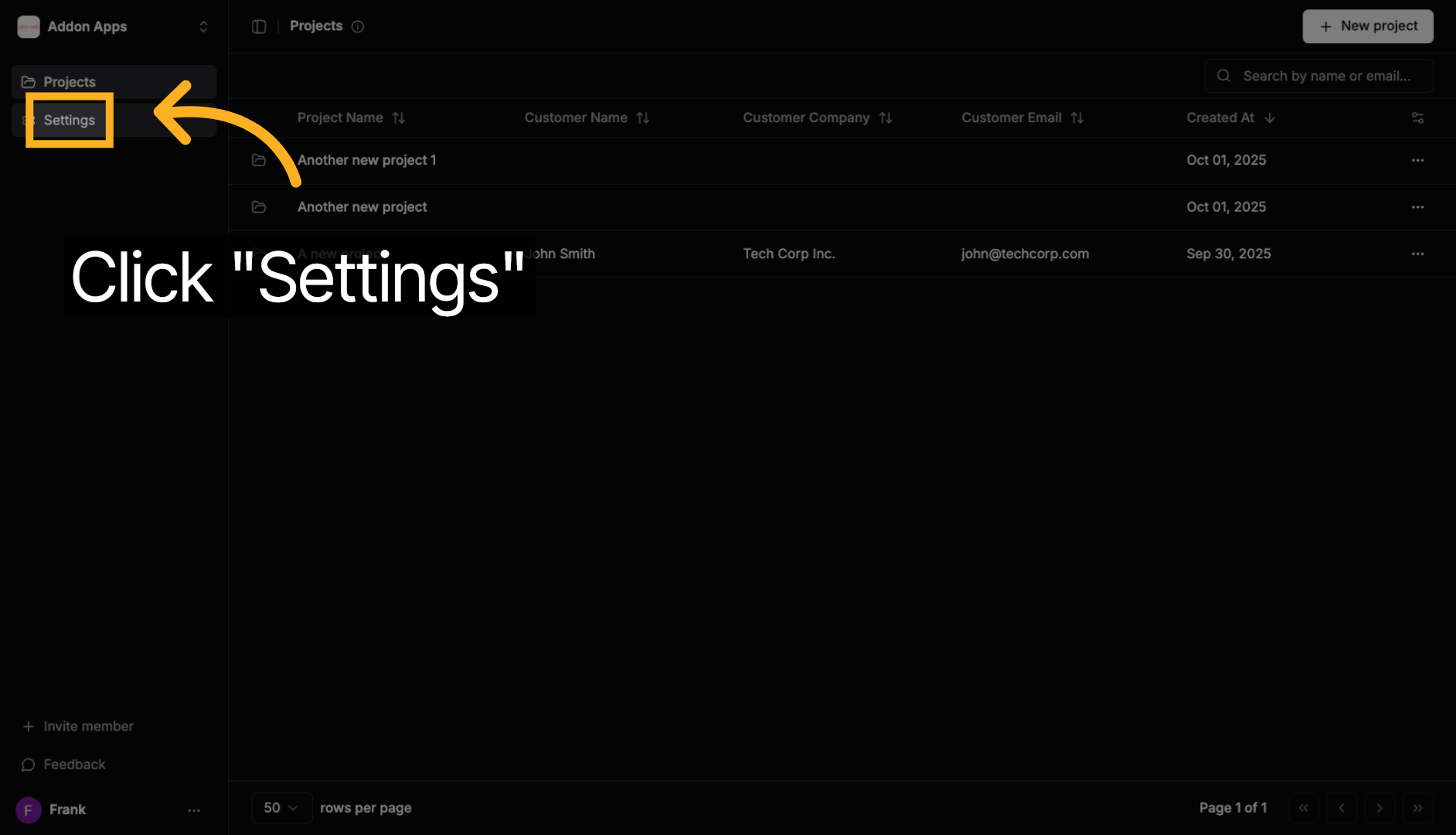
3. Navigate to Testimonials
Click "Testimonials" to access your testimonial management area.
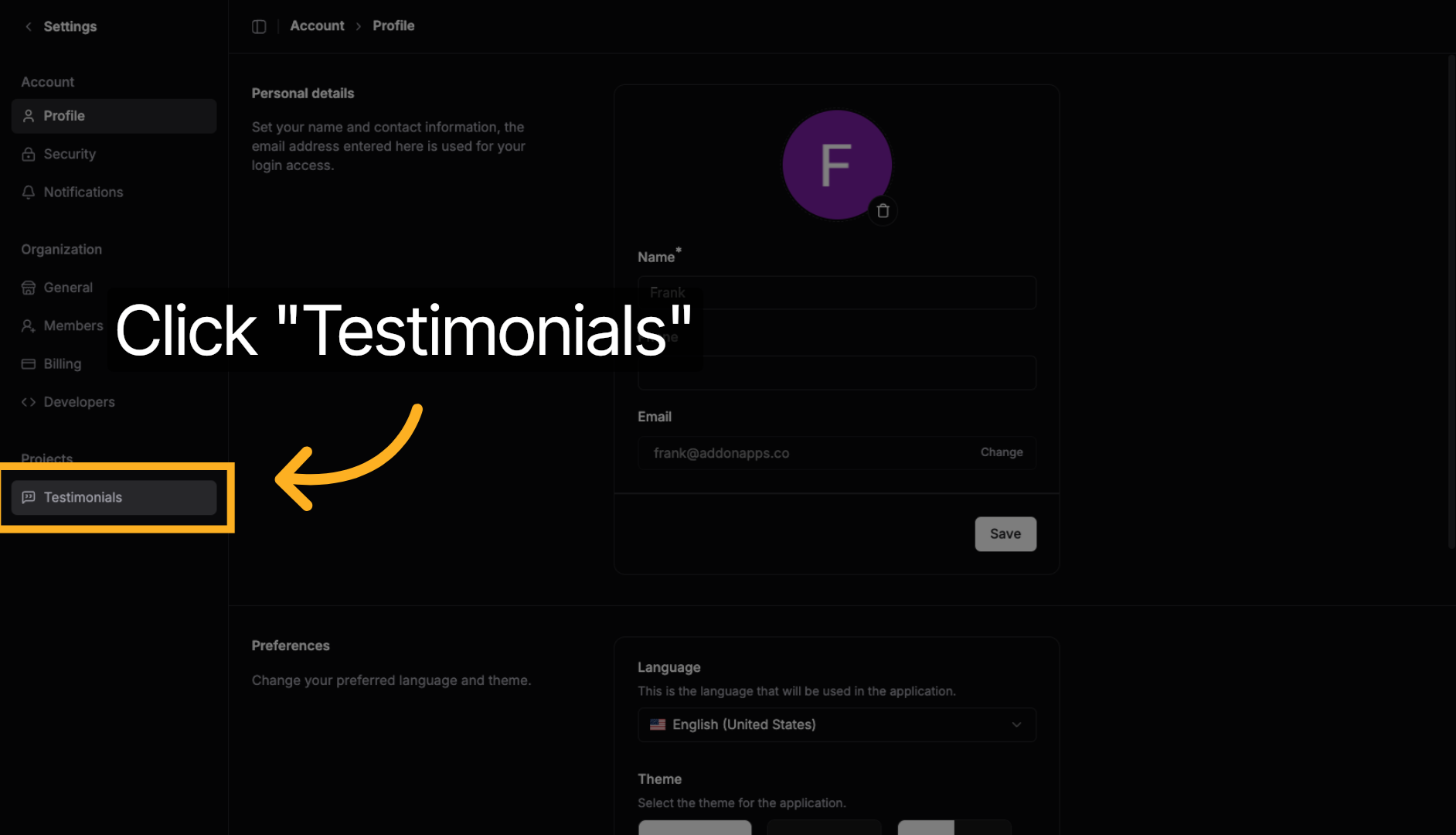
4. Start Adding a Testimonial
Click "Add Testimonial" to begin creating a new testimonial entry.
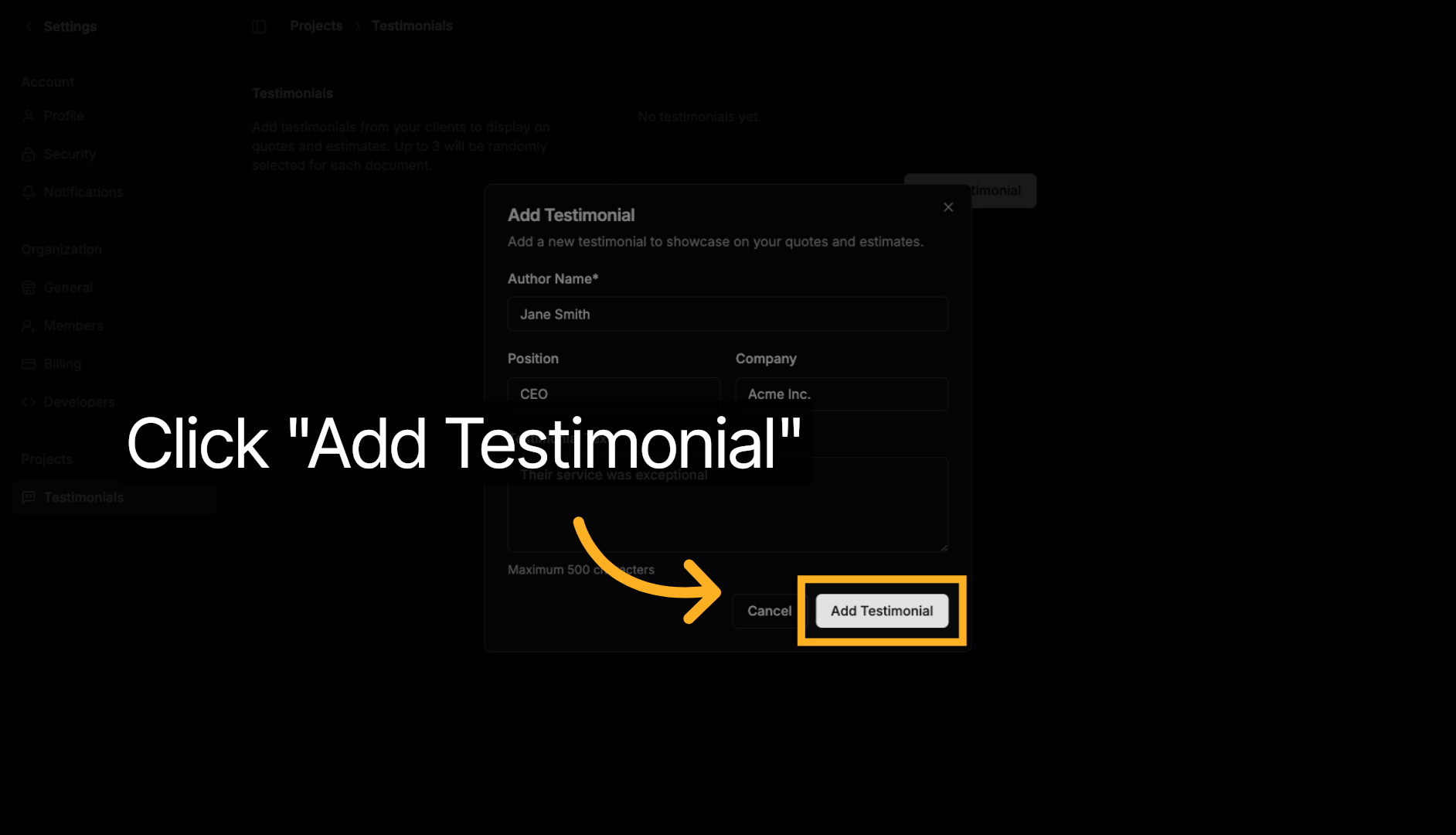
5. Fill in Client Details
Enter the client information to create a complete, credible testimonial:
Client Name: Enter their full name (required)
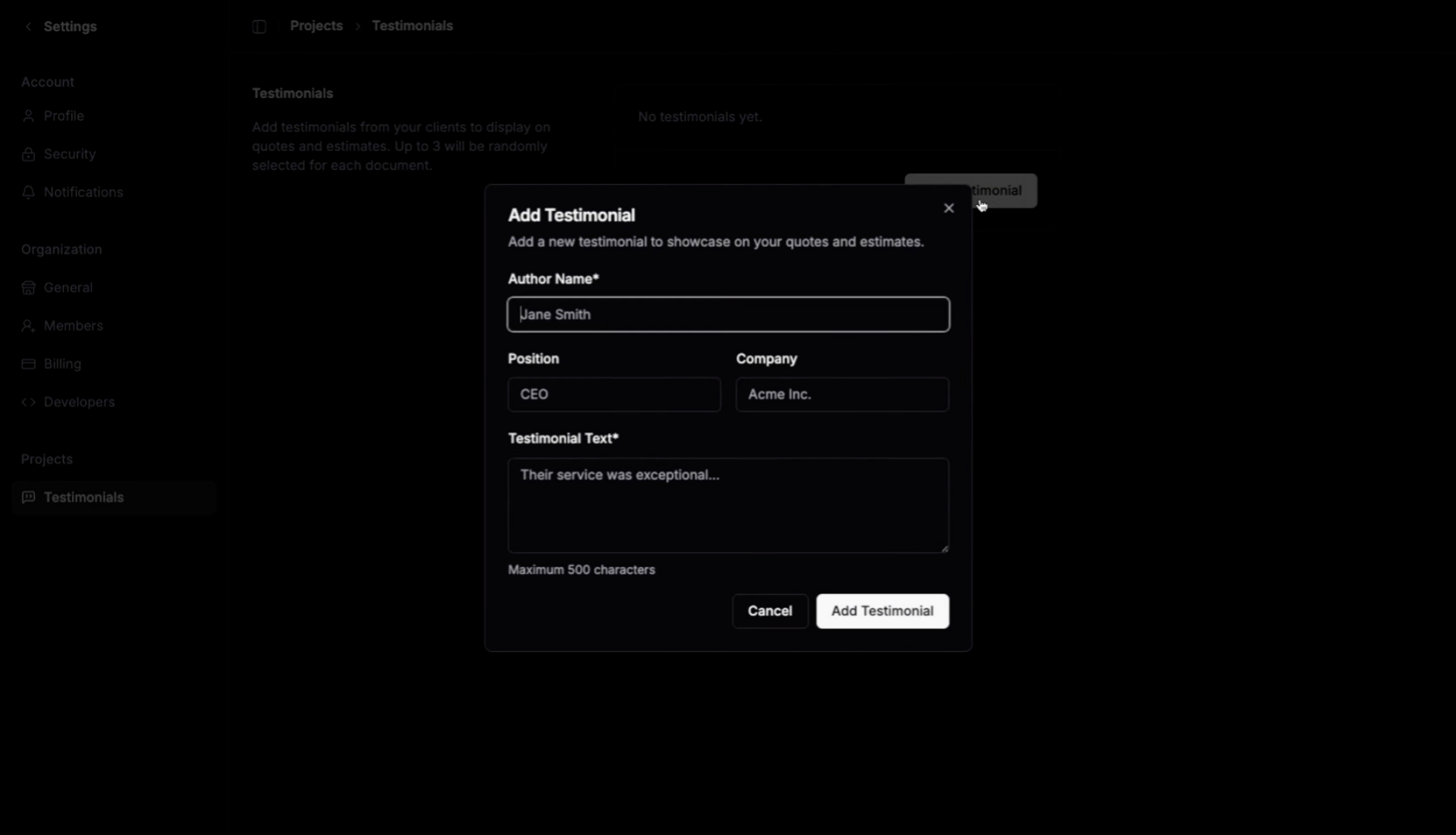
Position: Add their job title (optional but recommended for credibility)
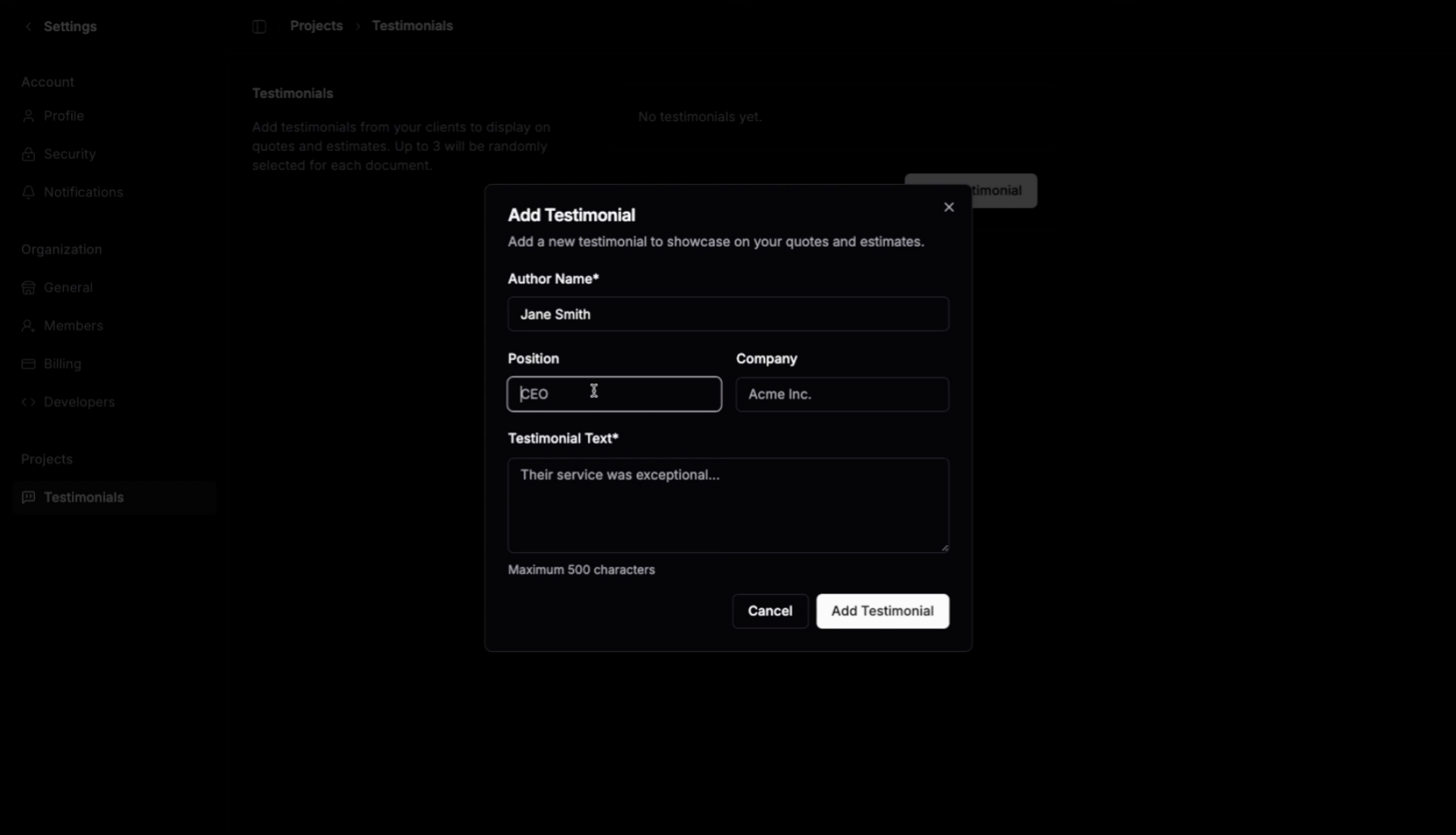
Company: Include their company name (optional but adds authority)
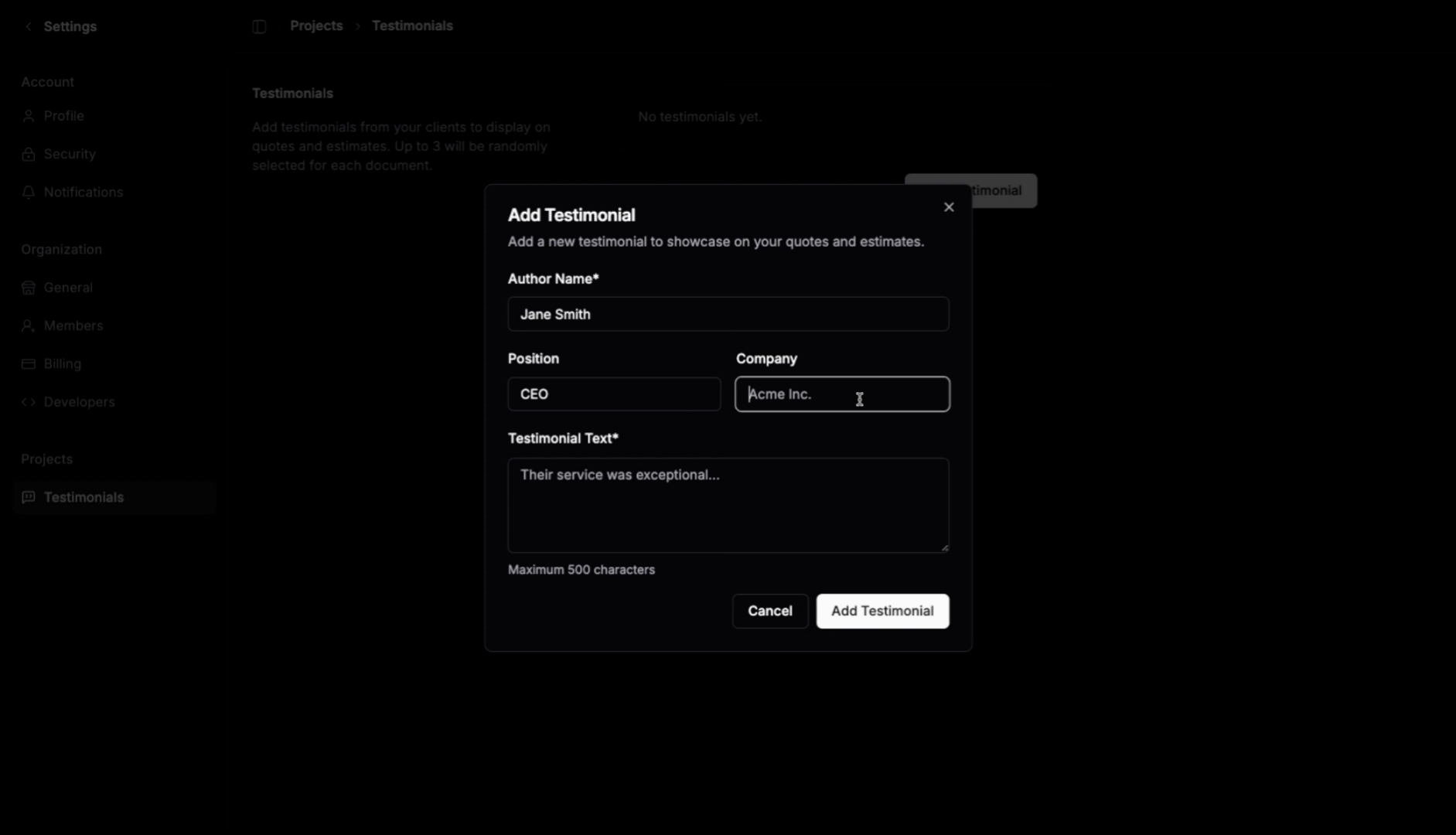
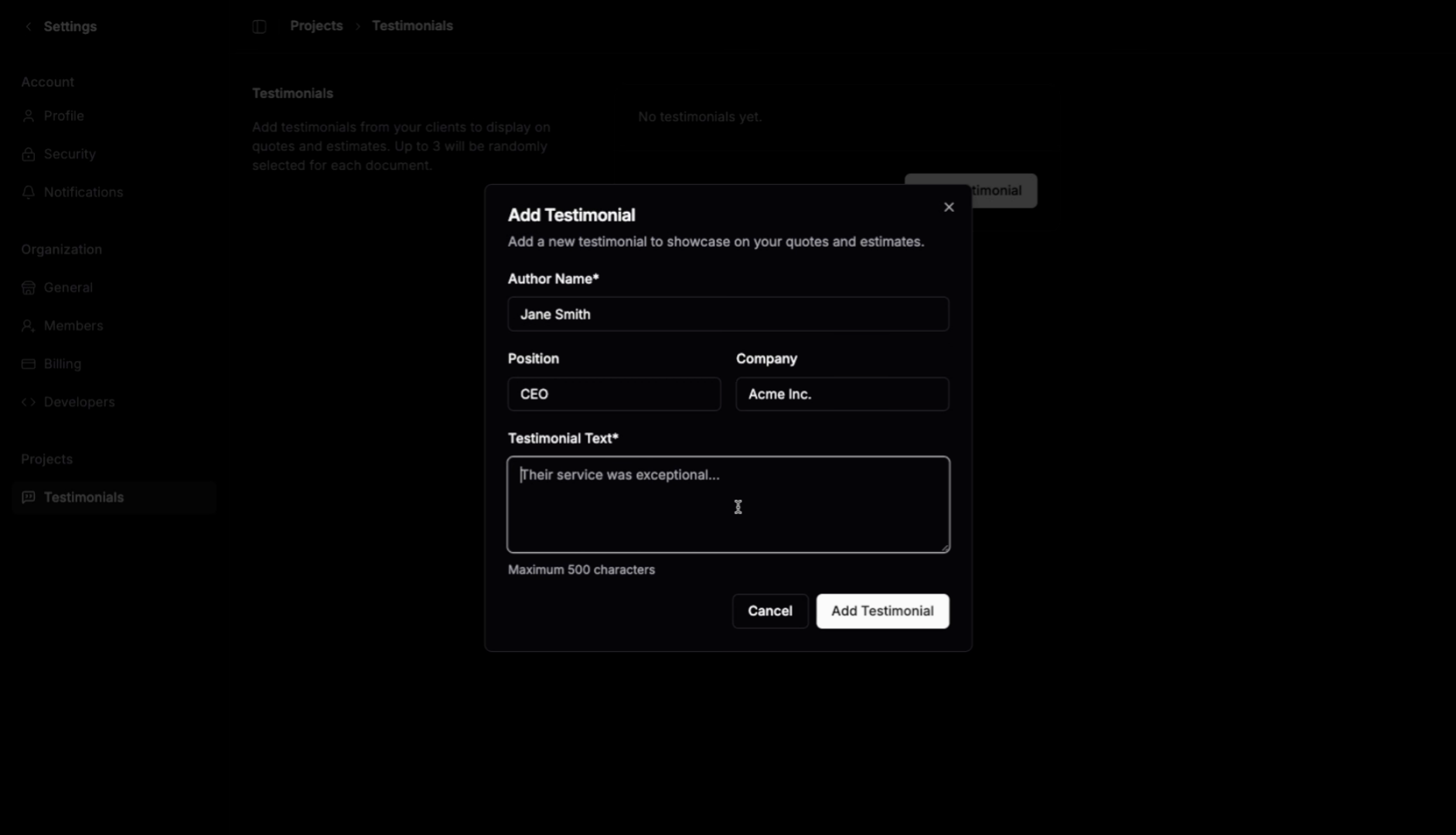
6. Add the Testimonial Text
Enter the client's feedback. Keep it under 500 characters for optimal display on quotes.
7. Save the Testimonial
Click "Add Testimonial" to save it to your collection. It will now be available to appear on your published quotes.
💡 Pro Tip: You need at least 2 testimonials before they start appearing on your published quotes. Once you have 2 or more, they'll automatically display at the bottom of your quotes as powerful social proof to help convert prospects into clients. With 3+ testimonials, QuoteScope randomly selects which ones to show, keeping your quotes fresh!
Next steps: Explore more guides or learn about creating quotes with AI.