
Example Estimate - Advanced Project
Explore an advanced example of a feature-based estimate in QuoteScope, including feature IDs, section headings, notes, assumptions, and custom formulas.
New to estimates? For a step-by-step guide to creating your first estimate, see the Estimates Guide. For a simpler walkthrough, check out the Basic Example.
This page demonstrates a more advanced example of an estimate, showing how to use feature IDs, section headings, notes, assumptions, and custom formulas to create a detailed, flexible project estimate in QuoteScope.
Example: Advanced Project Estimate
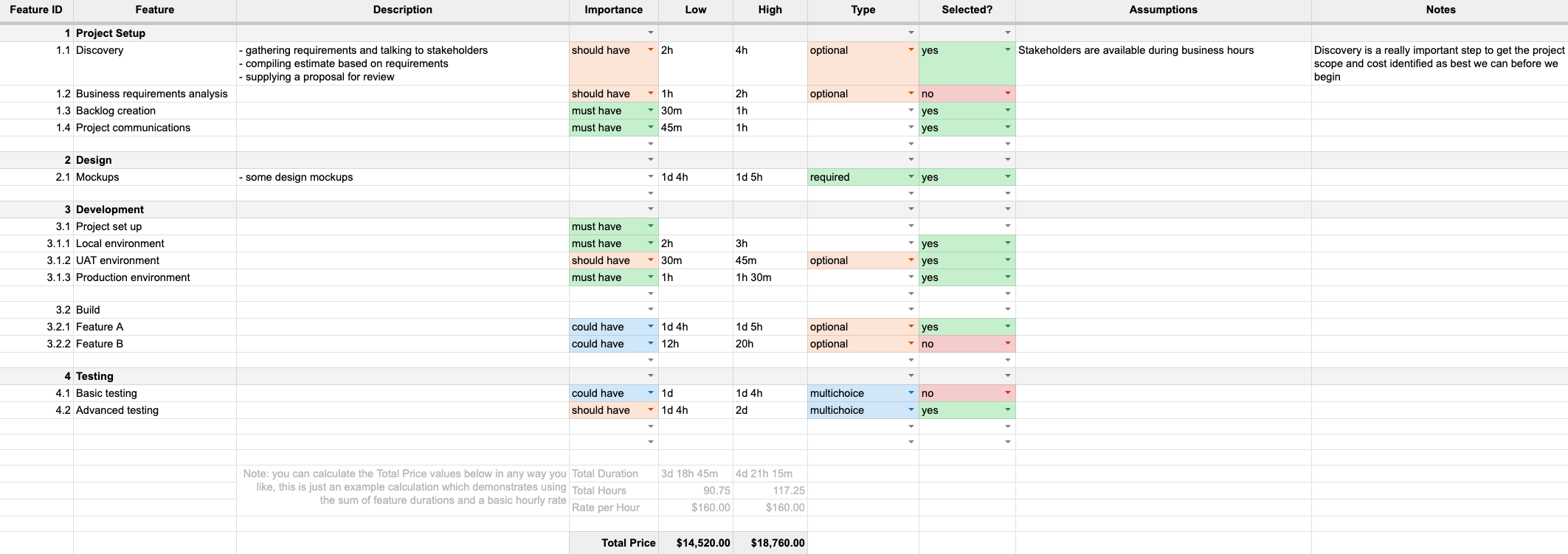
Below is a screenshot of an advanced website project estimate, created in Google Sheets using the QuoteScope template:
See the live published estimate to interact.
Tip: You can create this exact example yourself and play around with it. In Google Sheets, go to Extensions → QuoteScope → New Estimate → Advanced Website Estimate.
What Makes This Example Advanced?
This example builds on the basics and introduces several new concepts:
-
Feature IDs and Section Headings Feature IDs (like
1,1.1,2.1, etc.) are used to organize features into sections and sub-features. Some rows (e.g.,1,2,3,4) act as section headings and do not have time estimates or types. -
Optional, Required, and Multichoice Features Features can be marked as
required,optional, ormultichoice, just like in the basic example. Here, you’ll see more use of optional features and how they can be toggled on or off. -
Assumptions and Notes You can add assumptions and notes to any feature. For example, the "Discovery" row includes both, providing extra context for clients.
-
Blank Rows for Readability Blank rows are used to visually separate sections and multichoice groups. These rows are ignored in the published estimate.
-
Custom Formulas for Totals This sheet uses QuoteScope’s custom functions to automatically calculate total durations and prices based on selected features.
Columns Explained
- Feature ID: (Optional) Used for numbering, grouping, and nesting features. Helps organize the estimate visually.
- Feature: (Required) The name of the feature or task.
- Description: (Optional) Details about the feature.
- Importance: (Optional) Priority label—"must have", "should have", or "could have". Adds a badge in the published estimate.
- Low / High: (Optional, but recommended as a pair) Time estimates for the feature. Use formats like
2h,1d 4h, etc. - Type: (Optional for headings, required for selectable features)
- required: Always included in the estimate.
- optional: Can be toggled on/off by the client.
- multichoice: Part of a group where the client can select only one option.
- Selected?: For "optional" and "multichoice" features, set to "yes" or "no" to indicate if it's included by default.
- Assumptions: (Optional) Key assumptions for this feature.
- Notes: (Optional) Any extra notes or clarifications.
How This Example Works
-
Section Headings and Sub-Features Rows like
1, Project Setupand2, Designare section headings. Sub-features like1.1, Discoveryand1.2, Business requirements analysisare listed underneath, with their own details and estimates. -
Importance and Selection Features are marked with importance levels and can be required or optional. For example, "Discovery" is a
should haveand is selected by default, while "Business requirements analysis" is also ashould havebut not selected by default. -
Assumptions and Notes The "Discovery" feature includes an assumption about stakeholder availability and a note about the importance of this step.
-
Blank Rows Used to separate sections and make the sheet easier to read. These rows are ignored in the published estimate.
-
Custom Formulas for Totals At the bottom of the sheet, custom functions are used to calculate totals as an example:
=SUM_DURATION_CONDITIONAL(E2:E26, $H2:$H26)sums the durations of selected features.=FORMAT_DURATION(E27, "h")converts the total duration to hours.- The total price is then calculated by multiplying the total hours by the hourly rate.
Using Custom Functions
QuoteScope provides custom functions to help you work with durations and totals:
-
SUM_DURATION(range) Sums all durations in a range (e.g.,
2h,1d 4h). -
SUM_DURATION_CONDITIONAL(durationRange, conditionRange) Sums durations only for rows where the condition is true (e.g., where "Selected?" is "yes").
-
FORMAT_DURATION(value, format) Converts a duration value to a specific unit (
"h"for hours,"d"for days, etc.).
Example usage in your sheet:
=SUM_DURATION_CONDITIONAL(E2:E26, $H2:$H26)
=FORMAT_DURATION(E27, "h")
=E28 * E29  // Total hours * hourly rate
Totals Section
At the bottom of the sheet, you’ll see:
- Total Duration: The sum of all selected feature durations.
- Total Hours: The total duration converted to hours.
- Rate per Hour: Your chosen hourly rate.
- Total Price: The calculated total price for the estimate.
You can adjust the formulas and rates as needed for your project.
Key Takeaways
- Use Feature IDs and section headings to organize complex projects.
- Add assumptions and notes for clarity and transparency.
- Use custom functions to automate duration and price calculations.
- Blank rows help with readability and grouping but are ignored in the published estimate.
- The published estimate will reflect all structure, priorities, and selections, making it easy for clients to understand and interact with.
By using these advanced features, you can create detailed, professional estimates that clearly communicate scope, priorities, and pricing to your clients. For more details on estimate structure and options, see the Estimates Guide.