
Copying Quotes
Learn how to copy published quotes to create new editable versions when clients request changes.
Copying Quotes
When clients request changes to published quotes, you need to create a copy since published quotes are locked and cannot be edited. This guide shows you how to copy a quote and edit the new version.
Why Copy? Published quotes cannot be modified to maintain version integrity. By copying a quote, you create a fresh, editable version that you can modify and republish as needed.
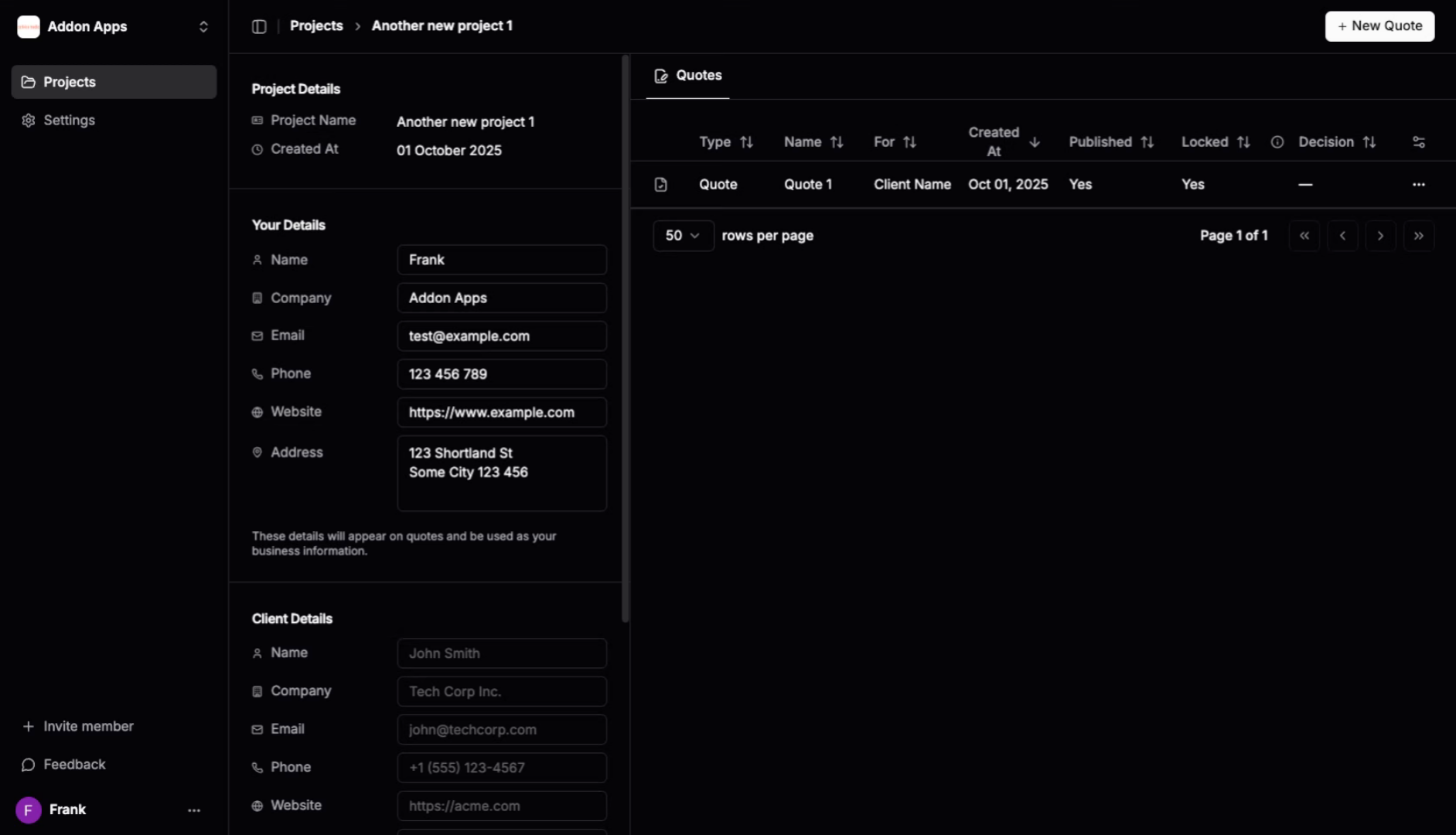
1. Access the Quote to Copy
Navigate to the published quote that you want to copy from your dashboard or project view.
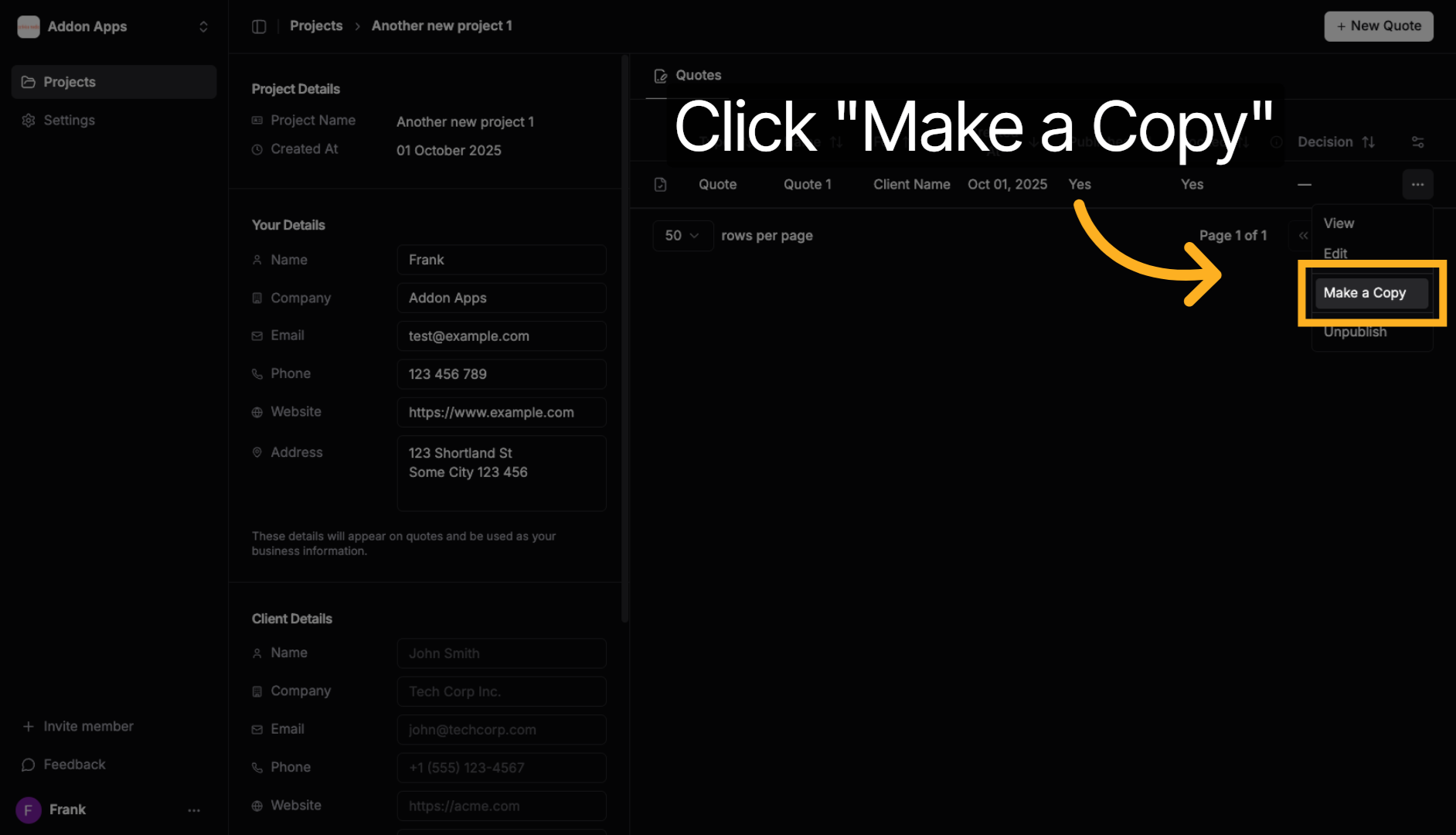
2. Click "Make a Copy"
Click the "Make a Copy" button to duplicate the quote. This creates a new, unlocked version that preserves all content from the original but can be freely edited.
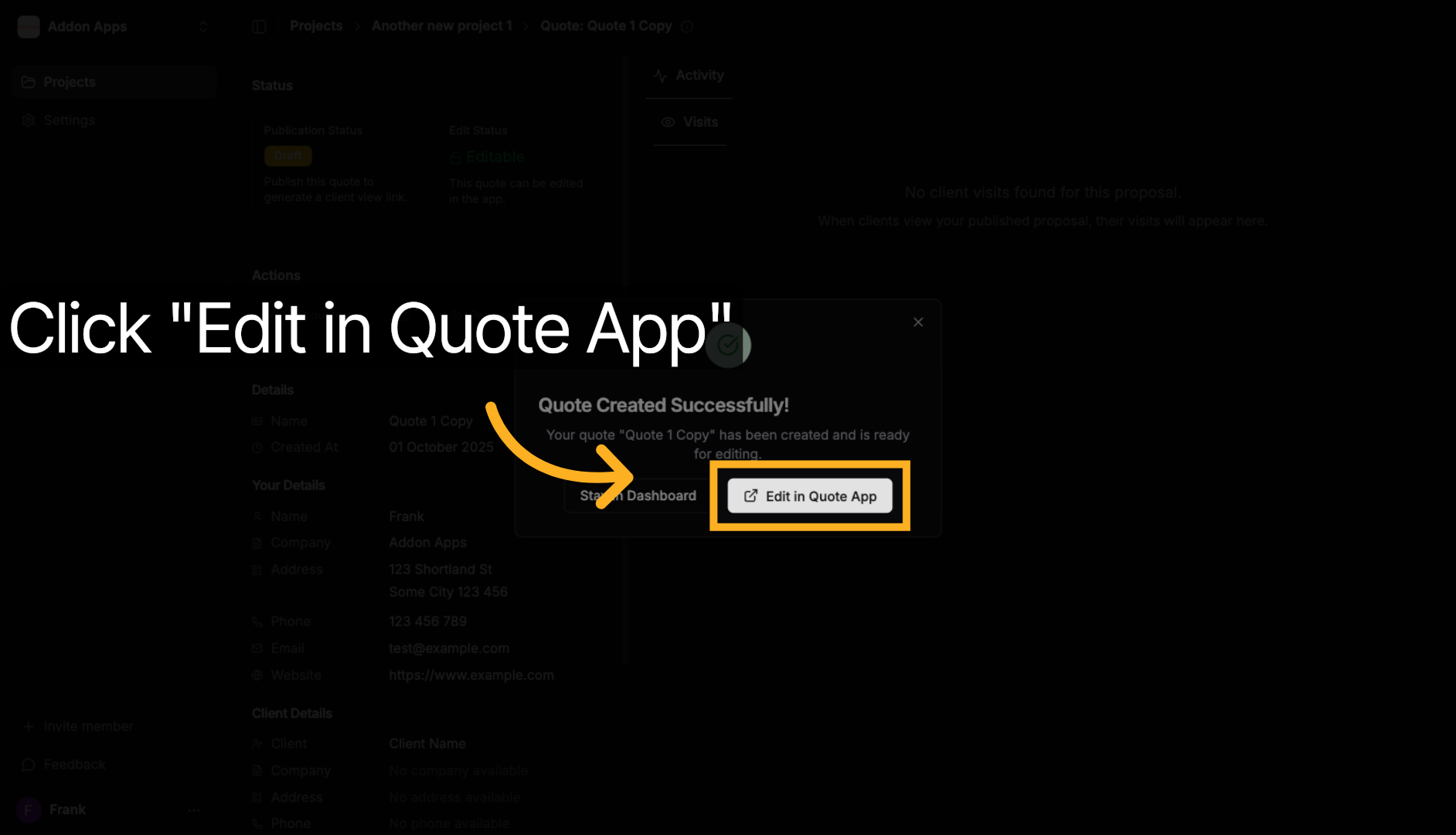
3. Click "Edit in Quote App"
Click "Edit in Quote App" to open the copied quote in the quote editor, where you can make the requested changes and customize it as needed.
Complete the Workflow
After copying and editing your quote:
1. Make Your Changes
- Use the quote editor to modify content, pricing, or structure
- Leverage the AI assistant for intelligent improvements
- Address any specific client feedback or requests
2. Publish the New Version
- Publish the updated quote to generate a fresh client link
- Send the new client link to your client
- The original quote remains unchanged for your records
Tip: When sending the new quote to your client, mention that this is an updated version based on their feedback. This shows responsiveness and professionalism while maintaining clear version control.
Next steps: Learn about editing quotes or publishing updated quotes.