
Example Estimate - Basic Website
See a real world example of a feature-based estimate in QuoteScope.
New to estimates? For a step-by-step guide to creating your first estimate, see the Estimates Guide. If you want to get started quickly, check out the Quick Start.
This page walks you through a practical example of an estimate, highlighting how features, options, and groups work in QuoteScope. Use this as a reference to better understand how to structure your own estimates.
Example: Website Project Estimate
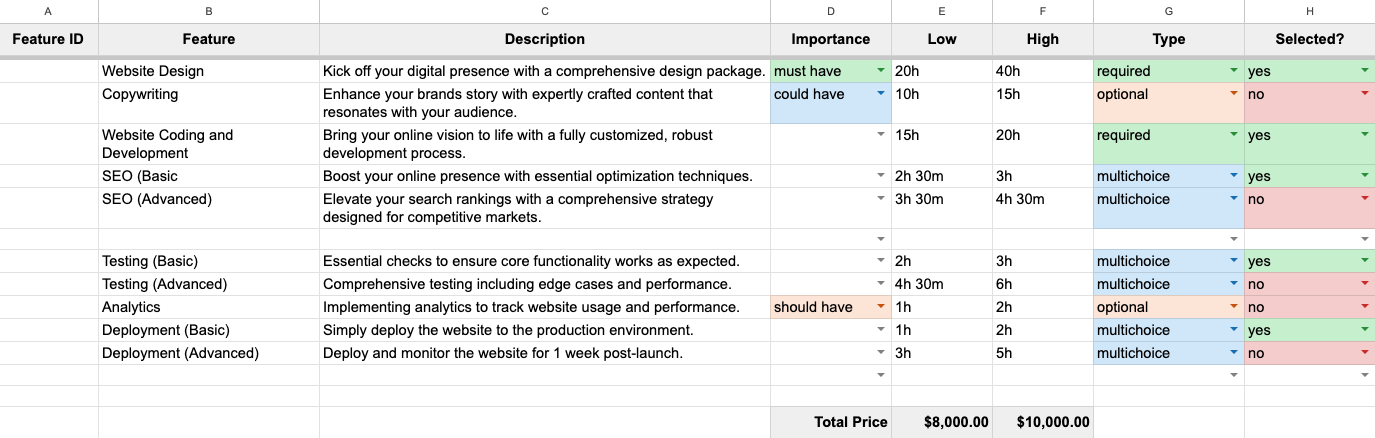
Below is a screenshot of a basic website project estimate, created in Google Sheets using the QuoteScope template:
See the live published estimate to interact.
Tip: You can create this exact example yourself and play around with it. In Google Sheets, go to Extensions → QuoteScope → New Estimate → Basic Website Estimate.
Let's break down how this estimate is structured and what each column means:
Columns Explained
- Feature ID: (Optional) Used for numbering or grouping features. In this example, it's left blank for simplicity.
- Feature: (Required) The name of the feature or task (e.g., "Website Design", "Copywriting").
- Description: (Optional) A short explanation of what the feature includes.
- Importance: (Optional) Indicates priority—"must have", "should have", or "could have". This adds a badge to the published estimate.
- Low / High: (Optional, but recommended as a pair) Time estimates for the feature. Use formats like
2h,1d 4h, etc. - Type: (Required) Determines how the feature is handled:
- required: Always included in the estimate.
- optional: Can be toggled on/off by the client.
- multichoice: Part of a group where the client can select only one option.
- Selected?: For "optional" and "multichoice" features, set to "yes" or "no" to indicate if it's included by default.
How This Example Works
-
Required Features "Website Design" and "Website Coding and Development" are marked as
requiredand are always included in the estimate. -
Optional Features "Copywriting" and "Analytics" are marked as
optional. They are not selected by default (noin the "Selected?" column), but clients can choose to include them when reviewing the estimate online. -
Multichoice Groups Features like "SEO (Basic)" and "SEO (Advanced)" are both marked as
multichoiceand are grouped together because they appear consecutively. Only one can be selected at a time. The same applies to "Testing (Basic)" vs "Testing (Advanced)", and "Deployment (Basic)" vs "Deployment (Advanced)". Blank rows between multichoice items create separate groups. These blank rows are ignored in the published estimate. -
Totals At the bottom, the sheet shows the total price range (e.g., "$8,000.00" to "$10,000.00") based on the selected features and their time estimates. These totals are displayed in the published estimate and update as features are selected or deselected.
Key Takeaways
- Feature ID is optional—use it for clarity or grouping if you like.
- Feature is required for each row.
- Use Importance to highlight priorities for your client.
- Low and High time estimates help set expectations and communicate uncertainty.
- Type controls whether a feature is always included, optional, or part of a multichoice group.
- Selected? lets you set the default state for optional and multichoice features.
- Blank rows help visually separate sections and define multichoice groups.
See It In Action
Here is the published estimate that came from the source data in that sheet: View Example Estimate
Notice how:
- Some features have a checkbox and can be selected or unselected by clients.
- Some features have radio buttons—these are the multichoice options.
- Features with an importance label display a badge (must have, could have, should have).
- Each feature shows a relative time estimate (e.g., extra small, small, medium, large, extra large) so clients can quickly gauge the size of each feature.
- When features are turned on or off, the total price range updates automatically. The price range is always approximate, and is calculated based on the average time for each feature and the total time for all selected features.
By following this structure, you can create clear, flexible estimates that help clients understand their options and make informed decisions. For more details on each column and advanced options, see the Estimates Guide.