
Send Approved Quote to Xero
Learn how to send an approved quote from QuoteScope to Xero as a draft invoice for seamless billing.
Send Approved Quote to Xero
Once you have connected your Xero account to QuoteScope, you can easily send approved quotes to Xero where they will be created as draft invoices, ready for final review and sending to your clients.
Prerequisites
Before you begin, ensure you have:
- Connected your Xero account to QuoteScope
- An approved quote in your QuoteScope project
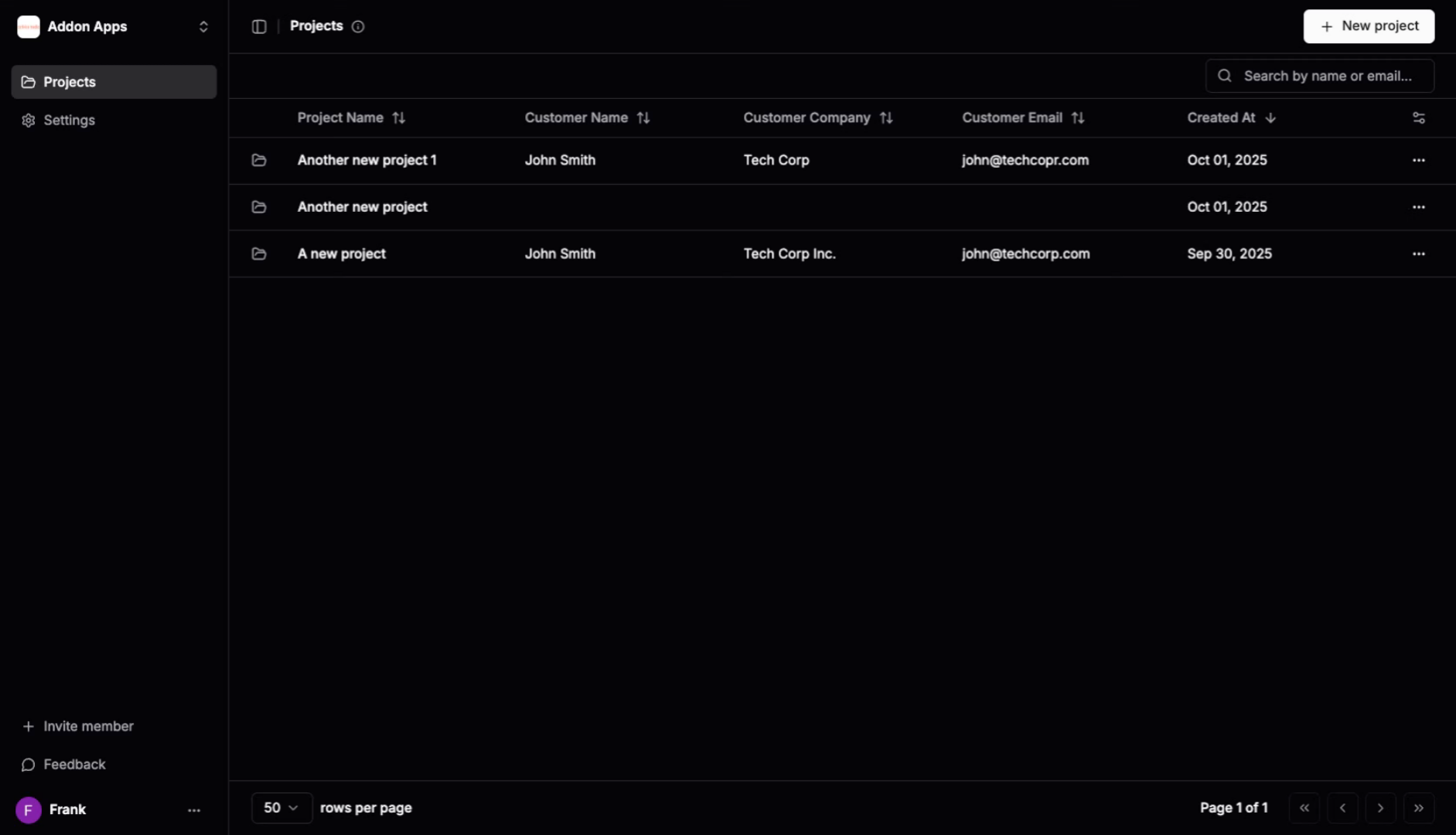
1. Navigate to Your QuoteScope Dashboard
Go to dashboard.quotescope.co and sign in to your account to access your projects.
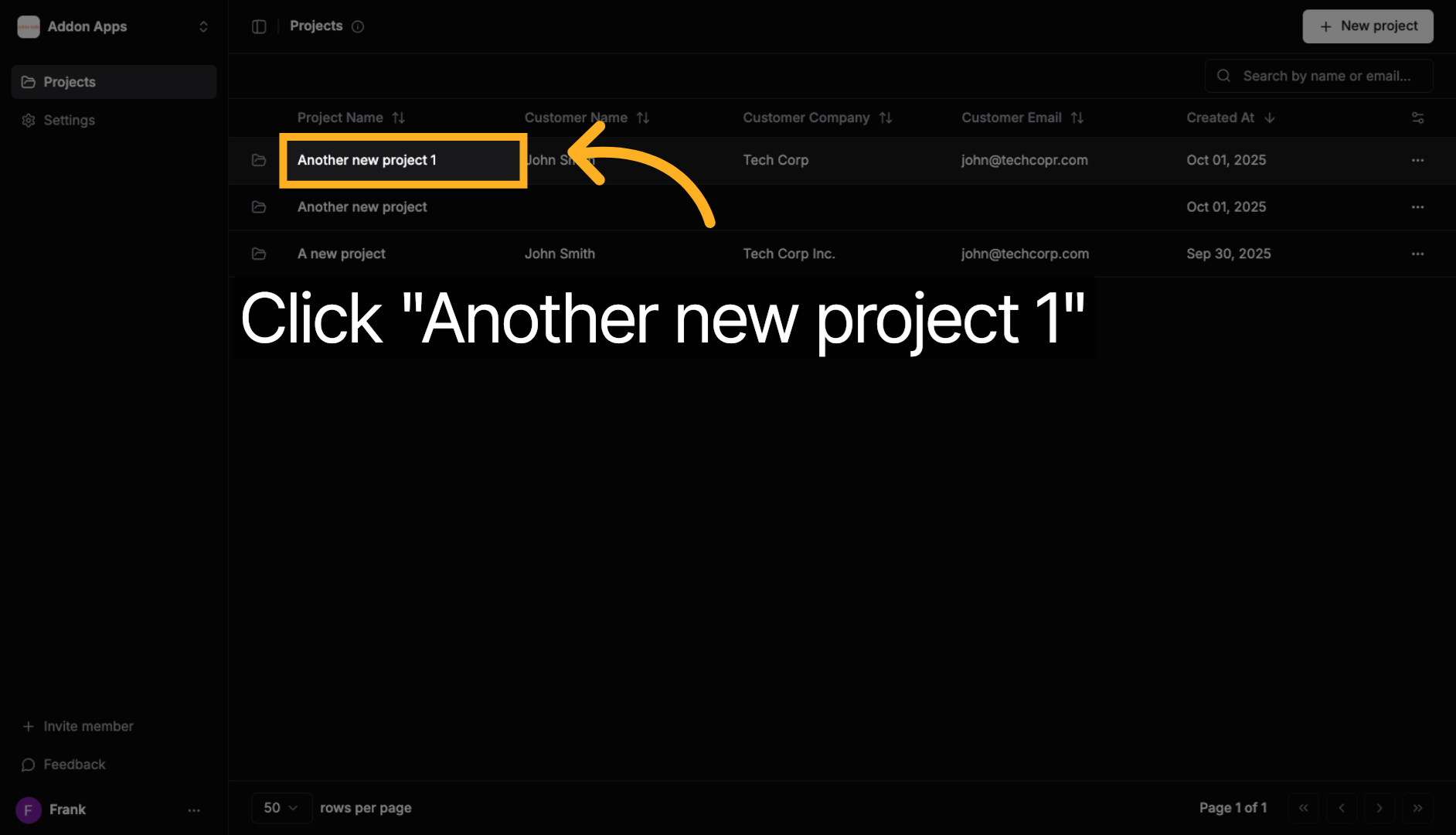
2. Open Your Project
Locate and click on the project containing the approved quote you want to send to Xero. In this example, we're opening "Another new project 1".
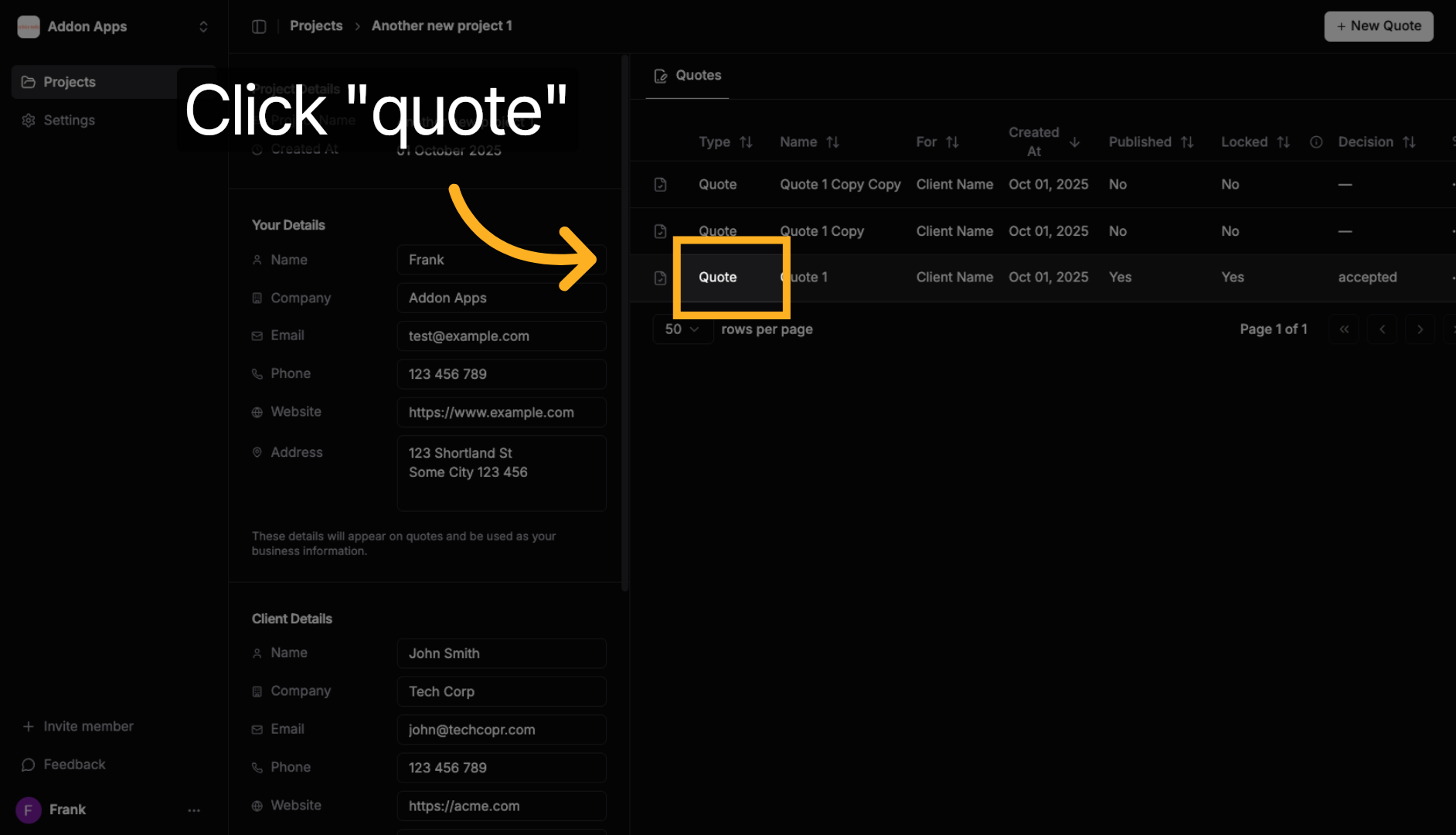
3. Access the Quote Section
Click on the quote.
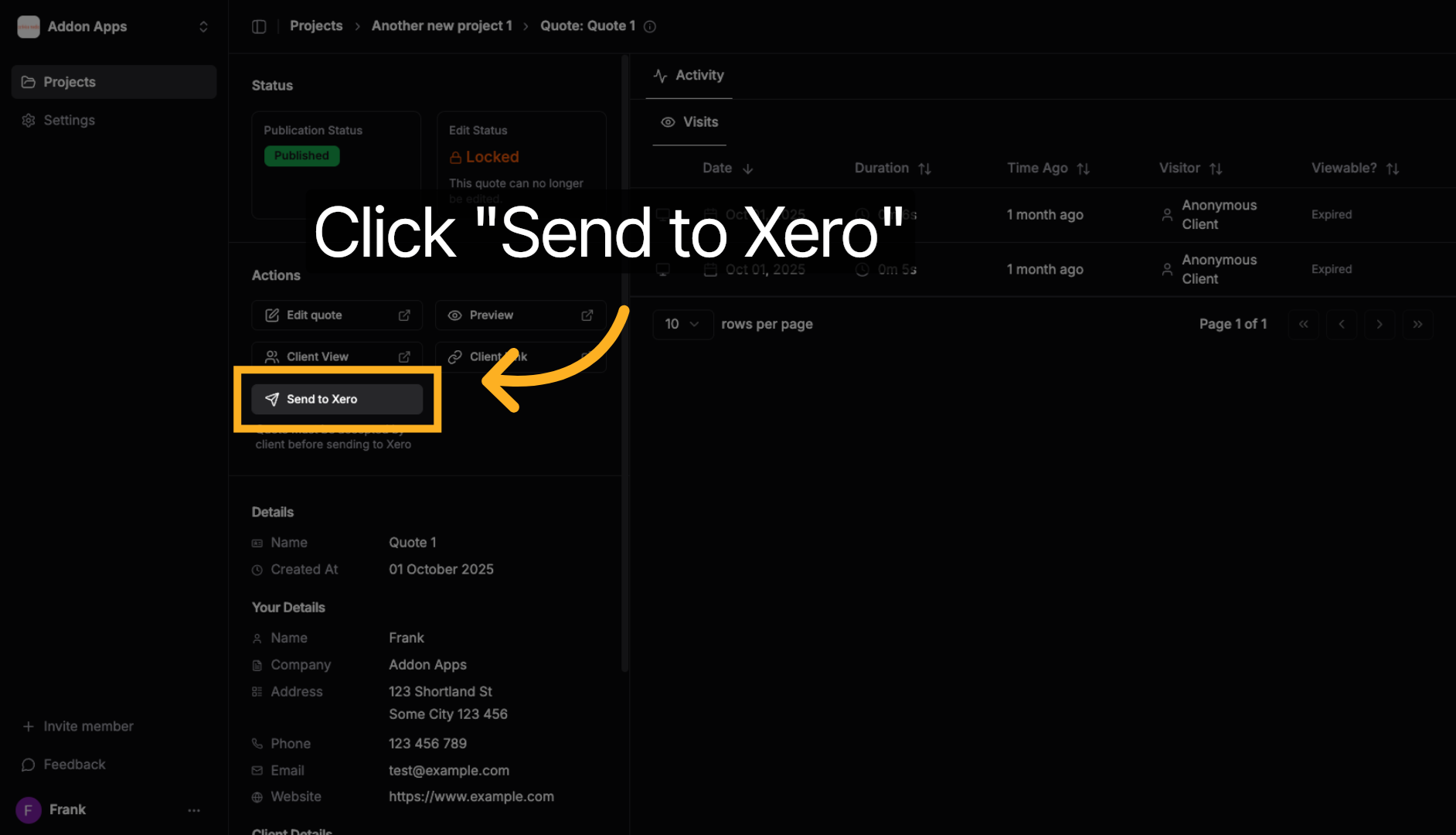
4. Send Quote to Xero as Draft Invoice
Click the "Send to Xero" button to transmit the approved quote to your connected Xero account. This will create a draft invoice in Xero with all the quote details, line items, and client information.
✅ Success - Draft Invoice Created
You have successfully sent your approved quote from QuoteScope to Xero! The quote has been converted into a draft invoice in your Xero account, where you can:
- Review the invoice details and make any final adjustments
- Add additional line items if needed
- Send the invoice directly to your client
- Track payment status and manage your accounting workflow
The draft invoice will include all the information from your QuoteScope quote, including client contact details, line items and pricing.
Next steps:
- Check your Xero account to review the draft invoice
- Learn about connecting to Xero if you haven't already
- Explore more guides or learn about creating quotes with AI